Top Lords Kingdom Map Scan Guide
Start a kingdom map scan, follow its progress, read alliance clusters, search castles by Lord, alliance tag or coordinates and check the coverage.
On this page
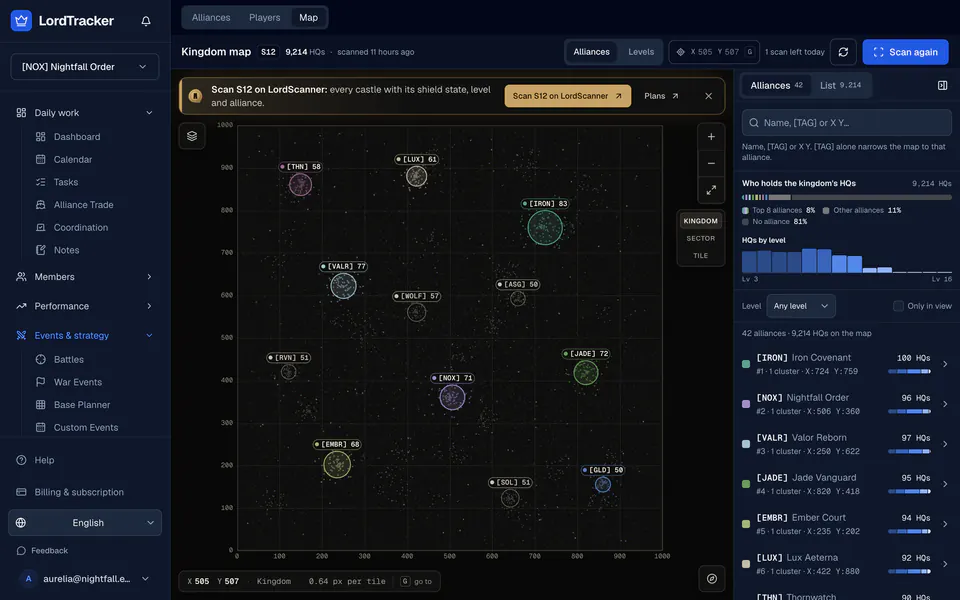
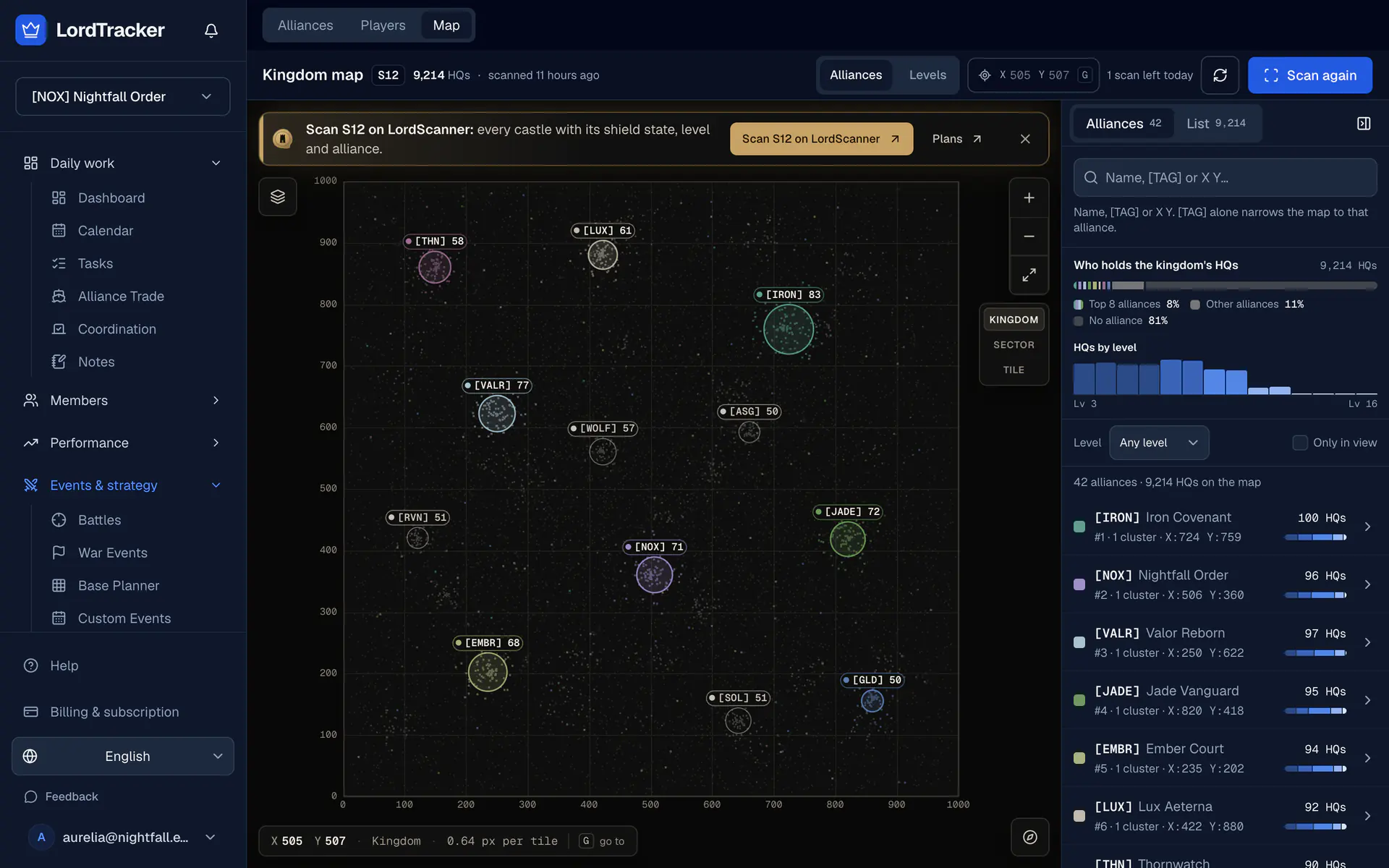
The Kingdom map under Events & strategy shows where castles sit in your kingdom, from dated scans. Starting a scan needs Pro, Server Bundle or the 7-day Pro trial and an officer role; everyone with access to the alliance can view the latest map.
1. Check that your kingdom can be scanned
Open Kingdom map. If the page says the map is not available for your kingdom yet, our collection fleet does not cover that kingdom. Your rankings, rosters and auto-sync work as usual; check again later.
2. Start a scan
Press Start scan. LordTracker plans your kingdom as a set of areas and hands them to the collection service. The scan runs there, not in your browser, so you can close the page. Each alliance can run one scan per UTC day, and the page shows whether today's is still left.
If a scan never starts, the page says Scan not started and you can start it again. Cancel scan stops a running scan.
3. Follow the progress
The header shows how many planned areas have finished. On the map, the areas not read yet are hatched and labelled, and they clear as they are checked. Until the scan completes, the map keeps showing your last complete scan; your first scan fills the map when it completes.
4. Read the map
Every headquarters is a dot. In Alliances, the 8 strongest alliances each get a colour, other alliances are a light grey and castles without an alliance a faint one. Zoomed out, the clusters of the 8 strongest alliances are discs and those of alliances with 50 or more headquarters rings, each labelled with the tag and its number of headquarters. Hover or tap a cluster for its card: the alliance's rank and power, its headquarters there by level and Show only that alliance. Switch to Levels to colour every headquarters by its level instead. The Layers card turns names, clusters, the graticule and the scan coverage on and off.
5. Find a castle
Pan by dragging and zoom with the controls, the wheel or a pinch; Fit the kingdom shows everything again. Zoom in and every headquarters carries its level, tag and name. Hover one for its Lord, tag, level and coordinates, and click it to copy the coordinates. The search finds a Lord, an alliance tag or coordinates among every headquarters of the scan, and a tag on its own narrows the map to that alliance. The List tab lists the headquarters in view for keyboard and screen-reader use.
6. Read the coverage
When the scan finishes, the page says whether the planned area coverage was validated. A partial scan marks the areas it could not read as unknown, never as empty. The map is a dated picture: it says when its scan ran, and castles can move during a scan and after it.
7. Scan again
Press Scan again for a fresh picture, for example before a relocation or after a war. Each alliance can scan once per UTC day; once today's scan is used, the page says when the next one is possible. Compare it with the kingdom ranking to see how strong the alliances around you are, and plan your own layout with the base planner.
The kingdom map page explains what scans include on each plan.
Top Lords Kingdom Map
Dated map scans that show where every alliance's castles sit in your kingdom.